CADPEAK
Activate and manage your Plant Detective license
Activate Plant Detective on this computer and review its license status through Settings.
Before you start
- A license key supplied through CADPEAK and a network connection for activation.
- The intended Windows computer; activation and local storage are associated with that machine.
Steps
Activate and inspect a license
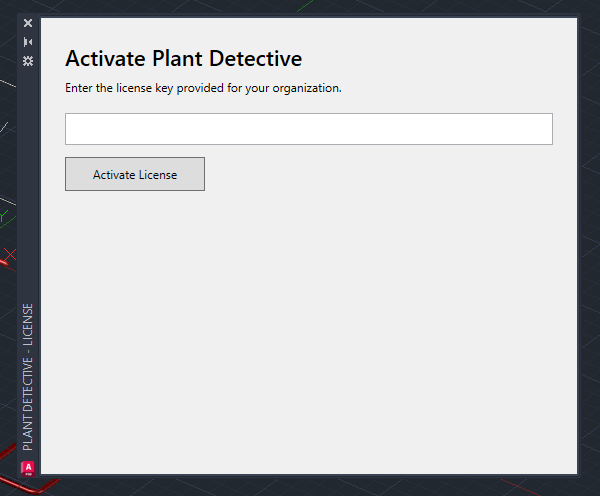
- When the activation screen appears, enter the organization's license key.
- Click Activate License and wait for the response.
- Read the activation status. A failure message must be resolved before assuming activation succeeded.
- Open Settings → License.
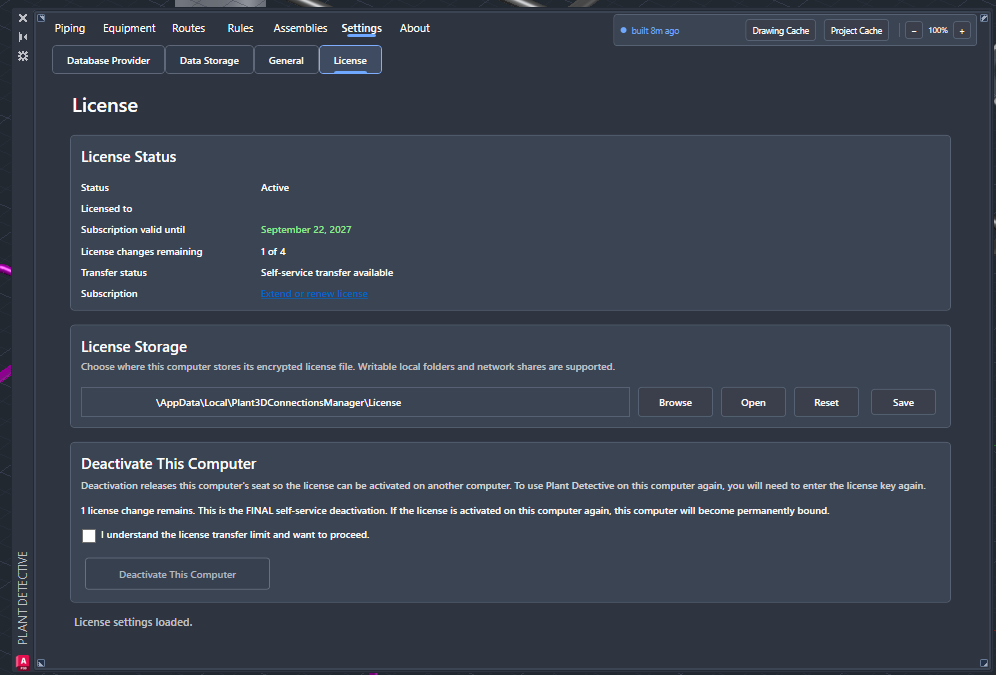
- Read Status, Licensed to, Subscription valid until, License changes remaining, Transfer status, and Subscription.
- Read expiry warnings before planning a workstation transfer or continued use.
The license page loads local status and checks transfer eligibility with the licensing service automatically. It does not expose a separate Refresh License button.
Renew and refresh entitlement
- Open Settings → License and read Subscription and Subscription valid until.
- Use Extend or renew license, or Extend license now when shown, to open the renewal page in your browser. If it cannot open or does not identify the expected product/account, contact CADPEAK Support.
- Reconnect this licensed computer to the internet and reopen Plant Detective. Normal license validation automatically attempts online refresh when the cached entitlement is nearing expiry or has expired; there is no separate Refresh License button.
- If the offline entitlement has expired, a successful online refresh is required before continued use, even when the subscription remains active.
- If refresh still fails, check the reported network/storage error and contact CADPEAK with the message and subscription details. Do not send the key/token or repeatedly deactivate the computer.
Subscription valid until is the license/subscription expiration date. Cached entitlement has a separate offline-validity limit, not displayed as that subscription date. A still-valid offline entitlement can remain usable if refresh fails; an expired one cannot. No fixed offline duration or payment-to-entitlement processing time is promised.
Set license storage
- Under License Storage, click Browse and choose a writable folder.
- Click Save to apply the displayed choice and move the computer's encrypted license storage.
- Read the result message.
- Use Open for the displayed folder.
- Use Reset to restore default local license storage.
Unlike the General/Data Storage folder selectors, License Browse only fills the path field; Save performs the change.
Deactivate this computer for transfer
- Read License changes remaining and Transfer status.
- Check I understand the license transfer limit and want to proceed.
- Click Deactivate This Computer when enabled.
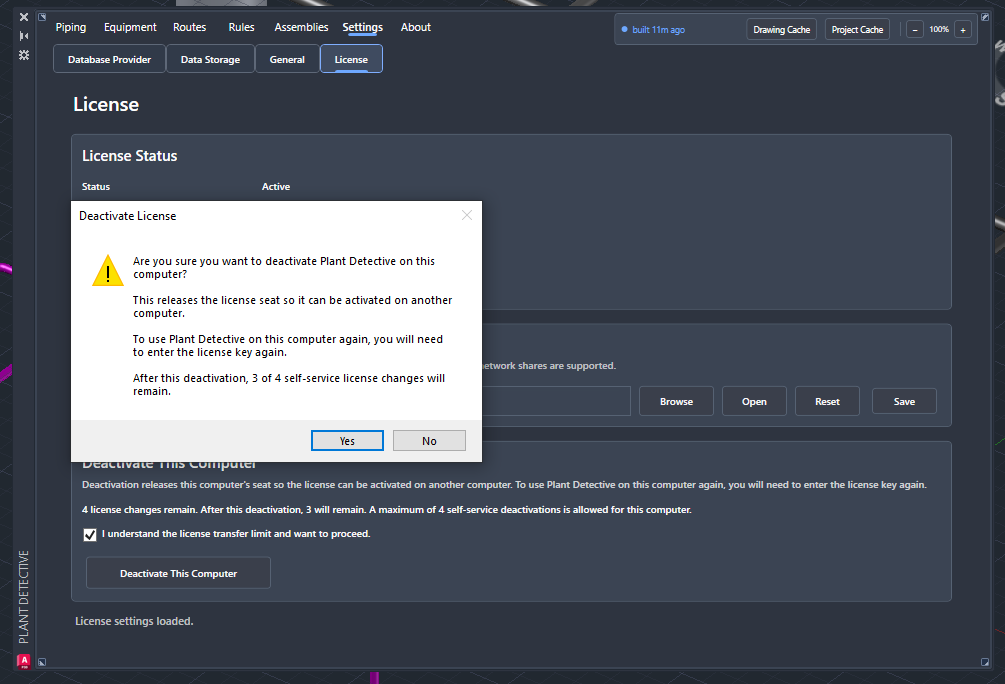
- Read the confirmation, including the remaining-change allowance. The final self-service deactivation has a specific permanent-binding warning on later reactivation.
- Choose Yes to proceed, or No to keep the current activation.
- Wait for a success result before treating the seat as released.
- Activate the license on the intended destination computer. This computer requires the key again if it is reactivated.
The action is disabled when eligibility cannot be verified, the computer is not active, or no self-service changes remain. Follow the displayed status/support guidance rather than repeatedly trying the action. Deactivation releases the seat and consumes the stated allowance.
What to expect
Activation stores a locally validated entitlement. License management shows the available transfer status; server-provided allowance and expiry govern what is permitted.
Important notes
- Do not share license keys, tokens, or unredacted licensing screenshots.
- Offline use is limited by cached entitlement validity, separate from the displayed subscription expiration date.
- A failed local save or inaccessible license folder can prevent opening even after a server operation succeeds. Report the exact message to CADPEAK.
- Transfer allowances can be limited. Do not deactivate repeatedly to troubleshoot loading.
- Deactivation is not a subscription cancellation or payment-management action. Use the appropriate CADPEAK account process for commercial changes.
Screenshots