CADPEAK
Create a reusable assembly definition
Save a connected component pattern for assembly matching.
Before you start
- A drawing cache and at least two valid connected components to use as the pattern.
Steps
Create an assembly from the model
- Open Assemblies → 1. Create Assemblies.
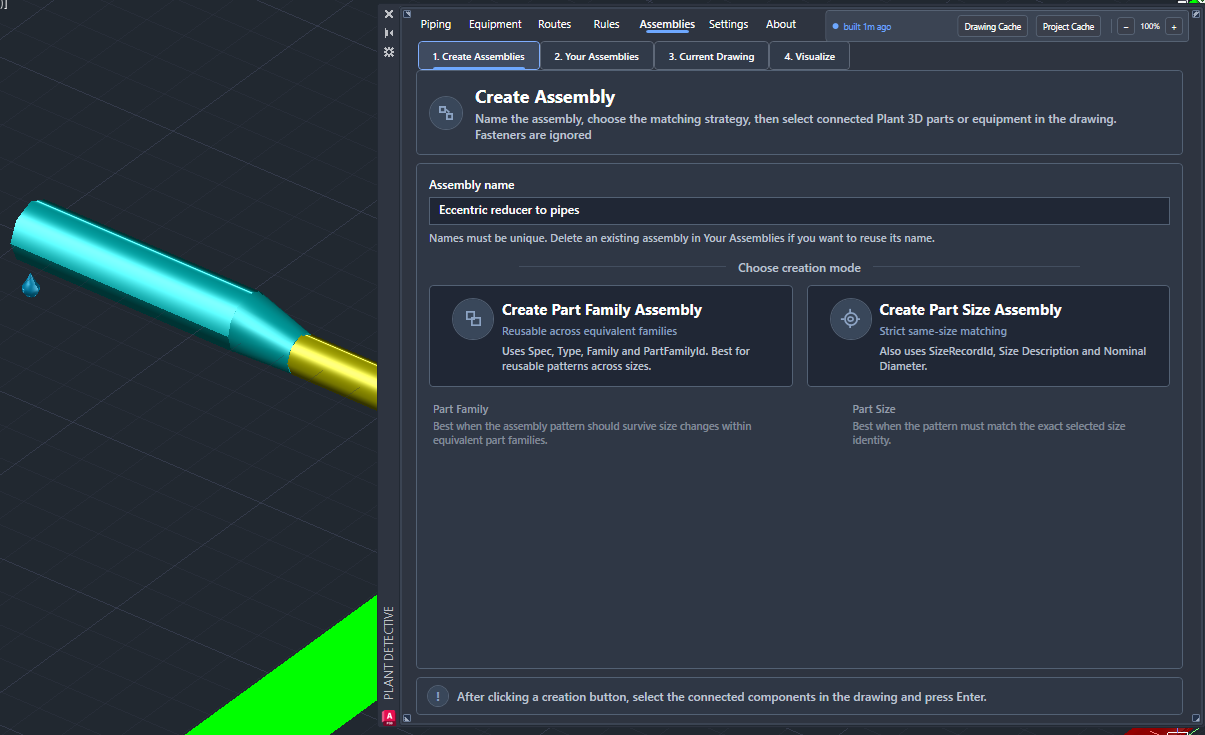
- Enter a unique Assembly name, such as “Cooling Water Isolation Set”.
- Choose Create Part Family Assembly for a reusable pattern across equivalent part families and sizes.
- Choose Create Part Size Assembly instead when exact size identity matters.
- In AutoCAD, select the connected parts/equipment belonging to the pattern and press Enter.
- Read the result dialog. Creation requires at least two valid objects and connected relationships. Connectors/fasteners are ignored as saved members.
- Check the reported saved pattern and snapshot result. A saved assembly can report that its snapshot was not captured.
- Dismiss the result and open 2. Your Assemblies.
Expected result: The pattern is saved automatically after successful selection/collection; there is no additional Save Assembly button. The name field clears and the library is notified of the change. Duplicate names are rejected.
The family mode uses equivalent family identity. Size mode also distinguishes exact size information. Choose based on how the pattern should match, not on whether you want a more detailed picture.
What to expect
The saved definition captures the selected analytical component pattern.
Important notes
- Part Family matching permits size variation within the recorded family criteria; Part Size matching also uses size-specific identity.
- Fasteners and connector objects do not become ordinary saved assembly members.
- Disconnected or unreadable selected objects can prevent a usable definition.
- A definition represents a graph pattern, not a manufacturing bill of materials or a certified engineering assembly.
Screenshots