CADPEAK
Highlight and select route components
Use route visualization to connect an analytical path with objects in the drawing.
Before you start
- A found or loaded route.
Steps
Review branches and compare saved overlays
- Open Visualize.
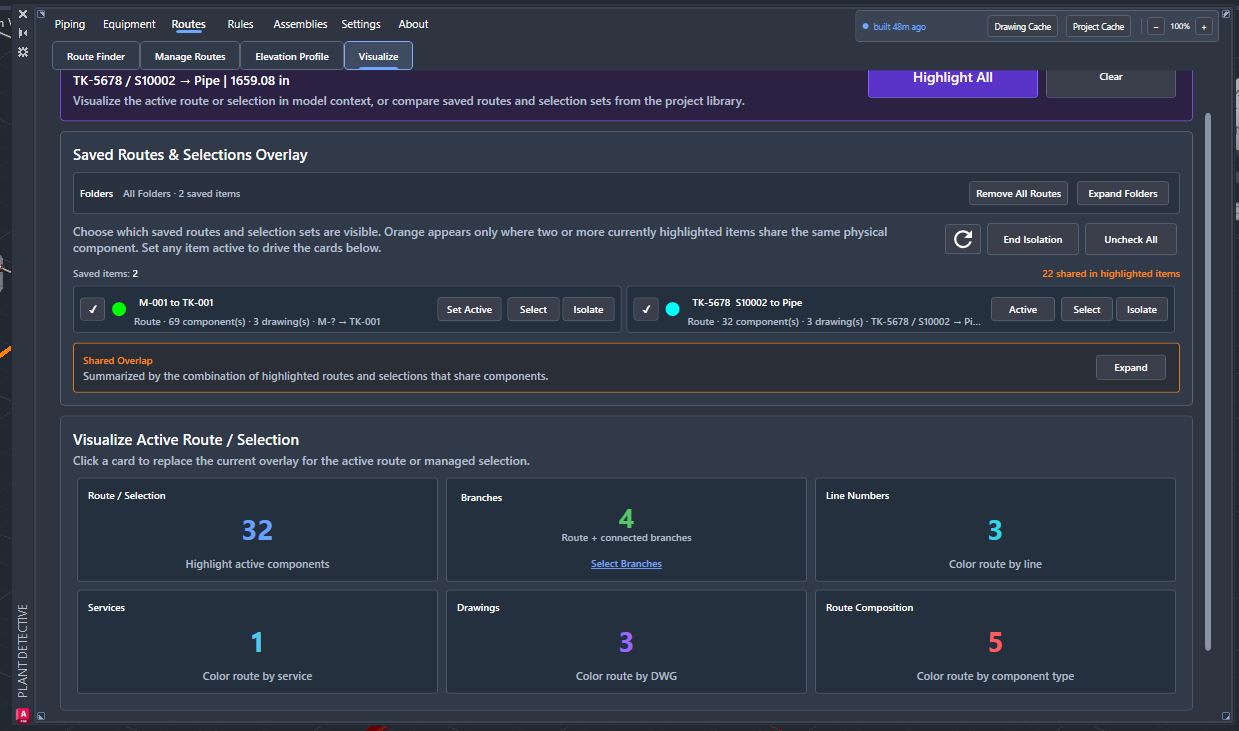
- For the active item, click Route / Selection to show its components.
- Click Branches for route plus connected branch context.
- Use Select Branches or Select All Branches to select available branch components.
- Read Details and use a detail row's Highlight or Select action for that branch/group.
- Use Line Numbers, Services, Drawings, or Route Composition to color by the chosen grouping.
- Under Saved Routes & Selections Overlay, expand Folders and select the relevant folders. A selected parent includes its descendants.
- Toggle the saved items you want highlighted. This is independent of which item is active.
- Use Set Active to make one saved item drive the active cards.
- Click an item's name to focus its highlight. This activates it and makes it the sole checked/highlighted saved item.
- Use its Select or Isolate for available active-drawing objects.
- Compare Shared Overlap. Orange indicates physical components shared by two or more currently highlighted items, not all saved routes in the library.
- Use Highlight All, Clear, and folder/item toggles to adjust the review set.
Remove All Routes clears the selected folder scope and removes its routes from the visualization; it does not delete saved library items. The same control changes to Add All Routes to restore them. End object isolation separately after using Isolate. Project/Xref components can be highlighted where available while host-drawing isolation remains limited to active-drawing objects.
What to expect
Temporary visualization makes the path easier to inspect without editing component properties.
Important notes
- Selection, highlighting, and isolation are separate review states.
- Objects in unavailable references may not resolve.
- If navigation chooses an unexpected object, stop and verify the drawing and component identity before editing the model.
Screenshots