CADPEAK
Build and refresh the current drawing cache
Extract drawing data before using connection, piping, equipment, or assembly results.
Before you start
- The correct saved project drawing is current.
- Loaded references and model objects needed for the review are accessible.
- Persistent rules configured if you expect rule classifications.
Steps
Build current drawing data
- Save relevant model edits and make the intended drawing active.
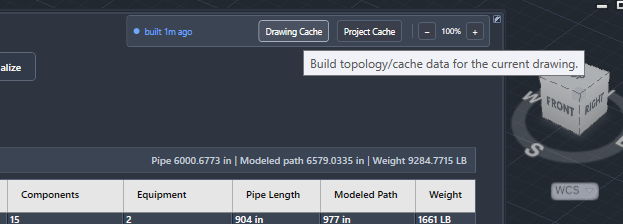
- Click Drawing Cache in the palette header.
- Read Build Drawing Cache?. It warns that Plant 3D can be frozen during processing.
- Click Build Drawing Cache, or Cancel to return without starting.
- Wait for command completion and for Plant 3D to respond. Closing the confirmation is not completion.
- Open the needed workspace. If results still look old, use its refresh control. Rules visualization calls this Refresh Tab.
Expected result: The saved drawing data used by the workspaces has been rebuilt. Refreshing a tab reloads saved information; after geometry, connectivity, or rule changes, rebuild before relying on the results.
What to expect
A completed extraction updates available drawing analysis. Connections, ports, topology, measurements, and external relationships are separate stages, so an error can leave some results older than others.
Important notes
- A normal command ending or a green-looking summary is not proof that every component was readable.
- Individual unreadable Plant objects can be skipped without making all results unusable; inspect the reported coverage.
- Existing data may remain after a failed stage. Do not interpret it as newly verified.
- If results seem inconsistent, preserve the messages, refresh, and review the project/Xref workflow before editing caches manually.
Screenshots