CADPEAK
Configure and test SQL Server securely
Enter SQL Server connection settings and test them without saving transient credentials.
Before you start
- Server and database details from your SQL Server administrator.
Steps
Configure and test SQL Server
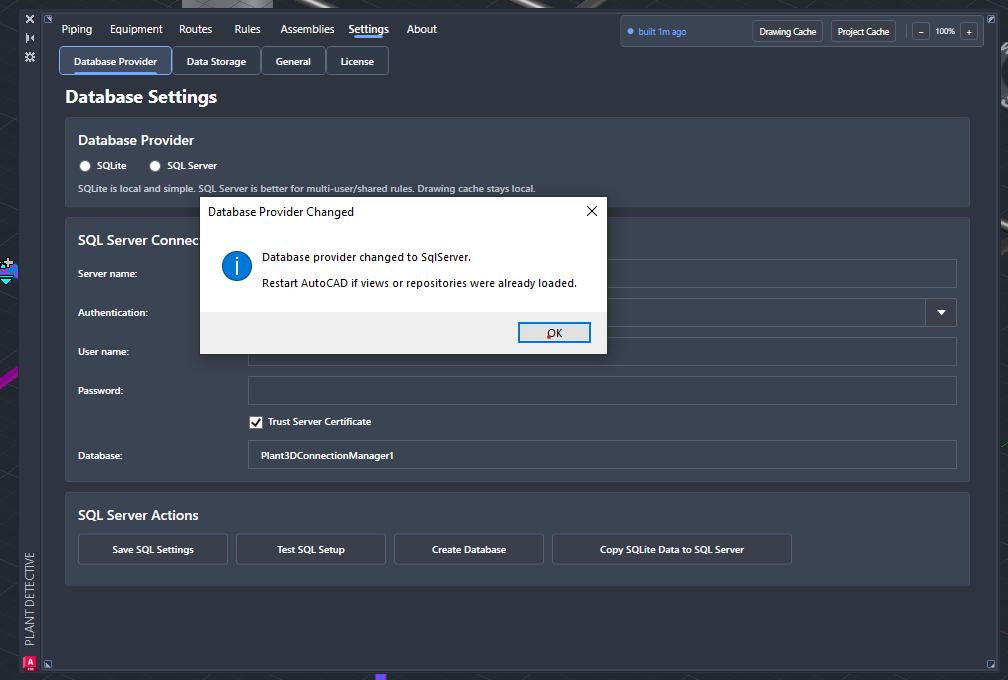
- Select SQL Server so the SQL controls are enabled.
- Enter Server name: using the administrator's instance name.
- Choose Windows Authentication or SQL Server Authentication in Authentication:.
- For SQL Server Authentication, enter User name: and Password:. These fields are disabled for Windows Authentication.
- Enter the intended Database: name. Keep an existing team's database name unchanged unless deliberately connecting to a different store.
- Set Trust Server Certificate according to the server setup supplied by the administrator.
- Click Test SQL Setup and read the success/failure message.
- If the intended database must be created, click Create Database with an account permitted to do so.
- Click Save SQL Settings to persist the entered connection settings.
- Restart AutoCAD where already-open views need to adopt the new provider/settings.
Testing uses the values currently entered. A successful test is not a Save action. Creating the database is also a separate action. If SQL credentials cannot be read on this computer, re-enter them and save; do not assume a blank field represents the previously saved password.
Expected result: The connection can be tested independently, and saved settings persist for later sessions.
What to expect
SQL connections use encryption. Test SQL Setup uses the current fields without saving them or creating a database.
Important notes
- Windows Authentication does not require a stored SQL password.
- Saved SQL passwords are protected for the current Windows user. Another Windows user or an incompatible copied settings file may require re-entry.
- A decryption failure should request new credentials without showing protected data. Preserve the settings backup before troubleshooting.
- For certificate validation errors, ask the administrator to correct the certificate, trusted chain, or server name. Trust is not enabled automatically.
- Checked Trust Server Certificate bypasses certificate validation while encryption remains enabled; use it only with an informed administrator decision.
Ask your SQL Server administrator to resolve access and certificate issues first. For a persistent Plant Detective configuration failure, contact CADPEAK Support with sanitized errors; never send passwords or private connection credentials.
Screenshots