CADPEAK
Manage storage folders and backups
Keep reusable application data, local caches, route libraries, and assembly media distinct.
Before you start
- A backup plan and write access to approved folders.
Steps
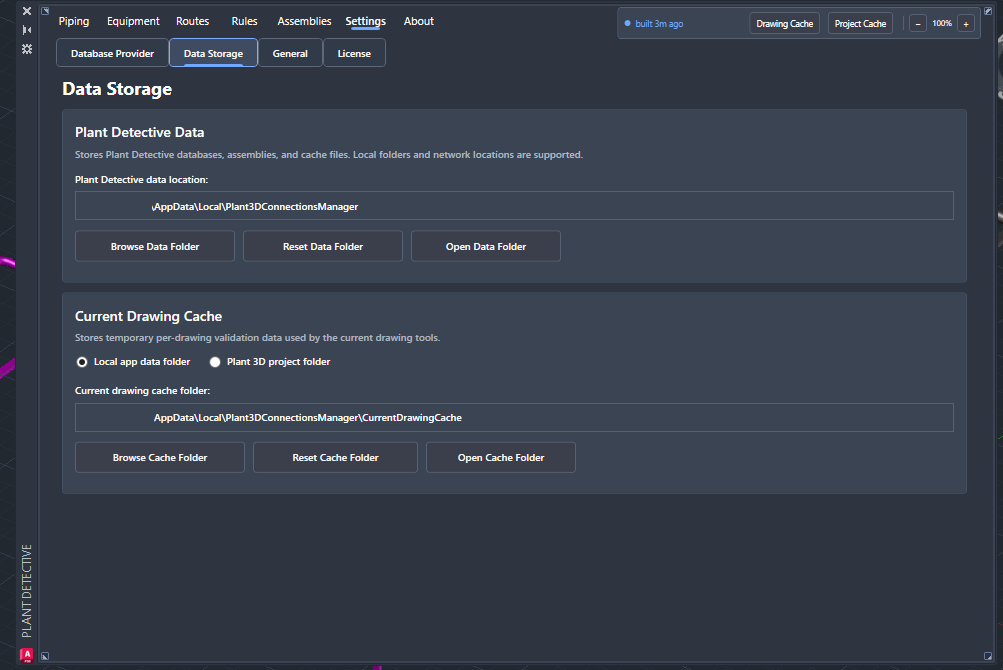
Configure Data Storage
Local application data
- Open Data Storage.
- Click Browse Data Folder.
- Choose a writable folder and accept the folder dialog.
- Read the updated displayed path. The choice is applied immediately; this page has no separate Save button.
- Use Open Data Folder to inspect the resolved location.
- Use Reset Data Folder to restore the default, and read/confirm its warning.
Changing/resetting a data path does not automatically move existing database files. An empty store at a new location does not mean the old data was deleted.
Drawing caches
- Choose Local app data folder or Plant 3D project folder.
- Read the change confirmation and accept only the intended location. The project-folder choice requires an appropriate active project.
- For a custom location, click Browse Cache Folder, confirm the change, then choose the folder.
- Read the resolved cache path.
- Use Open Cache Folder to inspect it.
- Use Reset Cache Folder to restore the local default after reading the warning.
- Rebuild the appropriate cache when data is absent at the newly chosen location.
Expected result: Future reads/builds use the configured locations. Existing cache files are not moved automatically.
Configure General storage
- Open General.
- Under Assembly Images, use Browse to choose the image folder, or type a path and click Save.
- Use Reset to restore the default.
- Read the result. Changing this location affects new assembly snapshots; existing records retain their stored image path.
- Under Saved Routes, use Browse, or enter the base folder and click Save.
- Read Current project: and the resolved project-library location.
- Click Open to open the active project's route-library folder.
- Use Reset to restore the default base location.
Browse and Reset apply their choices in these sections. Typing a path requires Save. Each Plant 3D project gets its own library beneath the base folder; changing the base does not move existing route files.
What to expect
Application data, analysis caches, images, routes, and licensing storage have different purposes and backup needs.
Important notes
- Caches can be rebuilt from accessible project drawings; persistent definitions and history cannot be recovered simply by rebuilding caches.
- Do not copy an actively written SQLite database as your only backup. Use a consistent backup procedure that accounts for active journal files.
- Drawing/project caches use SQLite file format even when persistent application data is shared in SQL Server. Format and physical location differ: use supported local app-data, Plant 3D project or custom cache locations with appropriate write access.
- SQL passwords and licensing caches have machine/user protection requirements; copying them is not a credential or seat transfer procedure.
- Do not delete/reset settings as a generic repair step.
Screenshots