CADPEAK
Open Plant Detective in a project drawing
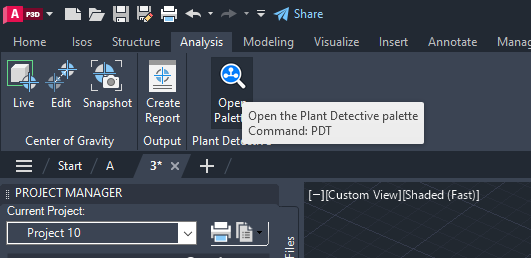
Open the CADPEAK Plant Detective palette from the ribbon or the PDT command.
Before you start
- An active Plant 3D project with readable piping drawings.
- A saved current drawing that belongs to that project.
Steps
Open the palette
- Enter
PDTat the AutoCAD command line and press Enter. - If activation is requested, enter the organization's license key and click Activate License.
- Choose Piping, Equipment, Routes, Rules, Assemblies, or Settings.
- Use the palette's + and − controls if you need to change its interface scale. The percentage describes palette scale, not model zoom.
Expected result: The workspace opens. Some views automatically load saved data when opened. Loading saved results does not mean the model has just been rebuilt.
Check drawing context
- Open the active project and its registered saved piping drawing.
- Use PDT, or Open Palette in the Plant Detective panel on the Analysis ribbon where available.
- After switching drawings, choose scope and refresh the affected view. Rebuild when that drawing's analysis is missing/outdated.
What to expect
The main palette opens after the project, drawing, and license checks pass. A missing ribbon panel does not by itself prove the command is unavailable.
Important notes
- If the project is missing, open the project before trying again.
- If the drawing is outside the active project, open the registered project drawing; matching filenames alone are insufficient.
- A missing or unreadable project drawing list can prevent opening.
- Reopening the palette can reuse existing views. It is not a substitute for a cache rebuild or a drawing-aware refresh.
Screenshots