 CADPEAK
Troubleshoot Plant Detective and prepare a support request
Use a focused checklist to separate configuration, stale data, navigation, and connection problems.
Before you start
- Preserve the current files and note the exact message before changing anything.
Steps
- For a palette that will not open, confirm the CADPEAK release, Plant 3D version, active project drawing, and license state.
- For missing or outdated results, rebuild the relevant cache and inspect drawing-level messages.
- For unexpected navigation, confirm scope, source drawing, reference availability, and duplicate drawing filenames.
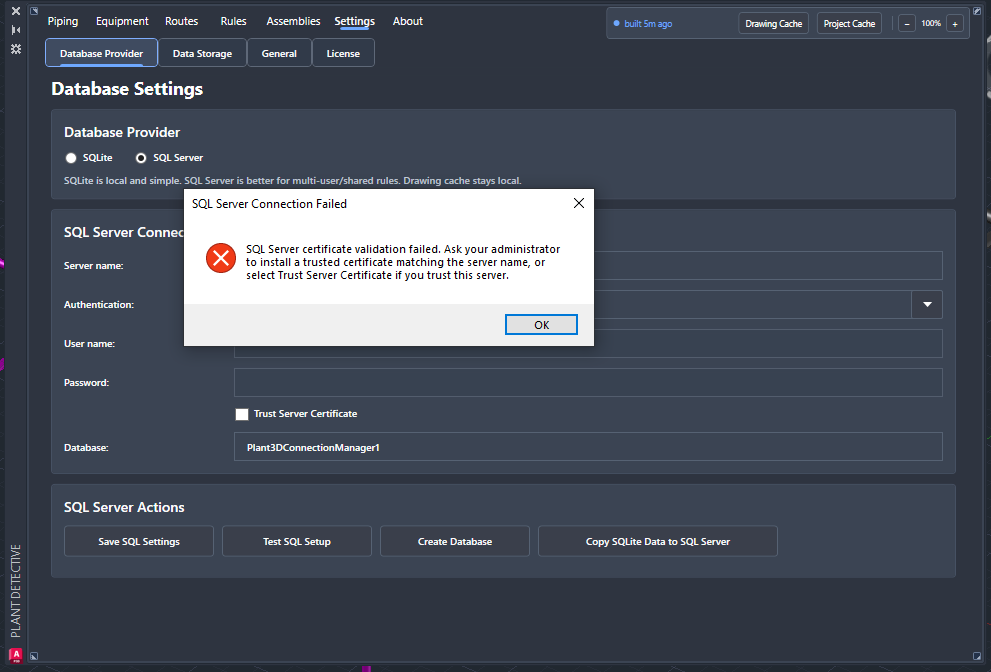
- For SQL failures, check the entered server/database, authentication, permissions, and certificate message.
- For unreadable protected credentials, re-enter them under the intended Windows user and save explicitly.
- For copy conflicts, preserve the per-table summary and do not overwrite or delete destination data to bypass the problem.
- For repeatable incorrect analysis, compare a small known model example with the displayed result.
- Send CADPEAK a concise reproduction, release/host versions, relevant sanitized screenshots, and the exact non-sensitive error text.
Diagnose one symptom at a time
| Symptom | Check and next action |
|---|---|
| PDT is unknown | Confirm installed release/loading instructions; do not guess a DLL path. |
| Palette refuses to open | Open the project and registered saved drawing; check licensing. |
| Empty grid | Clear search/tree restrictions and Filter → Clear All Filters separately; confirm scope. |
| Old/missing rows | Build Drawing Cache/Project Cache, wait, then refresh. Check failed/skipped-stage messages. |
| Wrong component zooms | Stop model editing; check drawing identity, references, and duplicate filenames. |
| SQL setup fails | Check entered connection, authentication, permissions and certificate message. Testing does not save. |
| Copy conflict | Retain the report; do not delete destination data just to force a copy. |
| Colors/visibility remain | Use Clear Highlights and End Isolation separately; restore Xref visibility. |
| Transfer disabled | Read Transfer status and allowance; do not deactivate repeatedly to repair loading. |
Prepare product/host versions, scope, exact steps, expected/actual outcomes and sanitized messages/screenshots. If the documentation does not resolve the problem, use the CADPEAK Support page, Contact page, or email contact@cadpeak.com. Include the Plant Detective version, AutoCAD Plant 3D version, a description of the problem, steps to reproduce, relevant error messages, and screenshots with sensitive information removed. Do not send license keys, passwords, private database credentials or confidential project files.
What to expect
A precise reproduction helps CADPEAK distinguish a data-reading limitation from a product defect.
Important notes
- Do not include passwords, license keys, access tokens, full connection strings, or confidential project files in an ordinary support message.
- A successful build or completed progress bar does not prove all drawings were read correctly.
- Avoid destructive cleanup, repeated folder renaming, or resetting configuration while diagnosing missing records.
- Confirm engineering-critical findings against the actual model and your review procedures.
Screenshots
Related help
- Activate and manage your Plant Detective license
- Build and refresh the current drawing cache
- Review Xrefs and cross-drawing connections
- Review assembly matches and missing patterns
- Configure and test SQL Server securely
- Create a SQL database and copy SQLite application data
- Complete Getting Started and Working with Results