CADPEAK
Filter, copy, and export result tables
Narrow results and export the intended selection or displayed rows.
Before you start
- Results loaded in a view with the shared table actions.
- A destination you are authorized to use for exported project information.
Steps
Narrow a result grid
- Use the view's search field, scope selector, and status filter where present.
- Expand the result tree and click a label to show its associated rows.
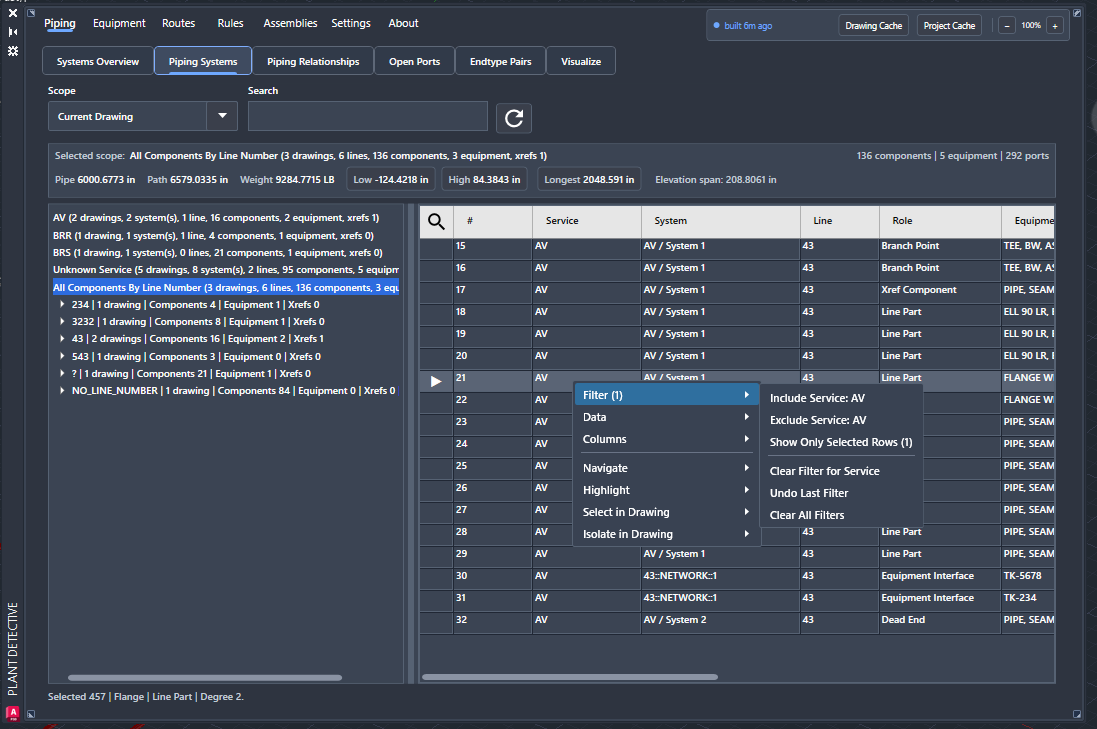
- Right-click a cell containing a value to keep, such as Status or Spec.
- Open Filter and choose Include Status: … or Include Spec: …. The menu uses the actual column name and clicked value.
- Use Exclude … to omit a value.
- Select a subset of rows and choose Filter → Show Only Selected Rows (…) when you want a hand-picked review set.
- Use Undo Last Filter to reverse the latest grid filter, or Clear All Filters to clear grid filters.
- Also clear search, restore dropdowns to All, and return to the tree's all-results node when you want the full source set. Grid-filter clearing does not clear these other restrictions.
Expected result: Rows reflect the combined view restrictions. An empty filtered grid is not necessarily an empty model.
Clicking a tree label, checking a box, and selecting grid rows are different operations. In rule creation, tree checkboxes collect parts for a side; clicking the label filters the grid. In result views, row selection prepares a subset for menu actions.
Work with results
Shared grids offer actions according to the view's capabilities. A saved definition may have no drawable model target. Use the actions present and enabled in the current menu.
| Menu action | Use |
|---|---|
| Data → Copy Cell Value | Copy the clicked value. |
| Data → Copy Selected Rows | Copy the selected review subset. |
| Data → Export Selected Rows to CSV | Save selected rows using the destination dialog. |
| Data → Export Displayed Rows to CSV | Save the current filtered result set. |
| Columns → Auto Hide Empty Columns | Reduce width where fields are empty. |
| Columns → Show All Columns | Restore columns before investigating missing detail. |
| Columns → Auto Size Columns / Reset Column Sizes | Fit widths or restore defaults. |
| Columns → Reset Entire Grid View | Reset grid presentation; recheck surrounding search/tree restrictions. |
| Navigate → Zoom to Selected Rows (…) / Zoom to Displayed Rows (…) | Frame drawable results. |
| Highlight | Overlay selected/displayed targets, then use Clear Highlights. |
| Select in Drawing | Select selected/displayed rows' Components or Components and Connectors, when offered. |
| Isolate in Drawing | Temporarily isolate selected/displayed targets, then use End Isolation. |
A row selection is not a model highlight. Highlighting adds an overlay; isolation temporarily changes visibility. Clear highlights and end isolation independently.
Set length display format
On eligible grids, right-click and open Length Display Format. Choose Decimal for decimal values or Architectural (Feet and Inches) for feet-and-inches presentation. The menu appears for supported length columns. Formatting changes displayed text, not model geometry or underlying engineering units. Check model/result units before interpretation. Verify CSV/clipboard values and units rather than assuming they match screen formatting.

Record the export date and scope, then open the CSV to verify row counts, columns, units and missing values.
What to expect
The export contains the chosen table data. It is a snapshot of the loaded results, not a continuously updated report.
Important notes
- Selected rows and displayed rows are different sets. Check which export action you chose.
- Not every specialized view has identical context-menu options; use the controls actually offered.
- Filtering hides rows without deleting model objects or database records.
- An export does not certify complete extraction. Preserve relevant warnings and scope information with the report.
- Remove confidential project details before sending samples to CADPEAK or publishing images.
Screenshots