CADPEAK
Understand connection rule statuses
Interpret rule classifications without confusing them with physical connectivity.
Before you start
- A drawing or project cache and, where needed, saved rules.
Steps
Filter a classification
- Open Rules → 3. Drawing Rules and choose Drawing or Project.
- Choose All, Part Family, or Part Size in Matched Rule Scope.
- Right-click Status and choose Filter → Include Status: ….
- Compare Status, Matched, and both sides' spec/family/size/port information.
- Use row Zoom or Navigate → Zoom to Selected Rows (…) to inspect the model.
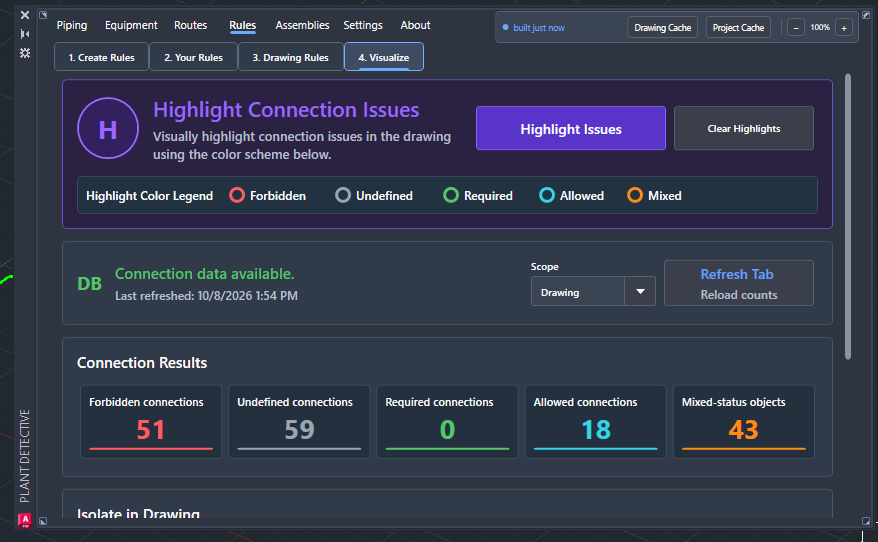
- Open Rules → 4. Visualize, click Refresh Tab, and compare counts with Highlight Color Legend.
- Click a count card to select its objects; use Highlight Issues for an overlay.
- Clear highlights and end isolation separately.
| Status | Interpretation |
|---|---|
| Allowed | A matching rule classifies the pair as accepted. |
| Required | A matching rule gives this detected pair required status; this is not a missing-component check. |
| Forbidden | A matching rule classifies the pair as disallowed. |
| Undefined | No applicable classification was obtained; verify rule access and coverage. |
| Mixed | An object/display rollup has connections with different classifications. |
What to expect
Allowed, Required, and Forbidden come from saved rule matches. Undefined means no applicable classification was obtained. Mixed is an aggregate object/display condition when its associated connections have different classifications.
Important notes
- Required marks matching detected connections; it does not prove that every required component exists or detect all missing engineering requirements.
- A missing rules database can leave discovered connections Undefined. Resolve access and rule availability before treating all Undefined rows as design problems.
- A size-specific rule is checked before a family rule. Review the matched scope when overlapping rules exist.
- Colors support navigation; use the status text and legend rather than color alone.
Screenshots