CADPEAK
Navigate the Plant Detective palette
Find the main workspaces and distinguish palette controls from drawing controls.
Before you start
- Plant Detective open in a valid project drawing.
Steps
Open the palette
- Enter
PDTat the AutoCAD command line and press Enter. - If activation is requested, enter the organization's license key and click Activate License.
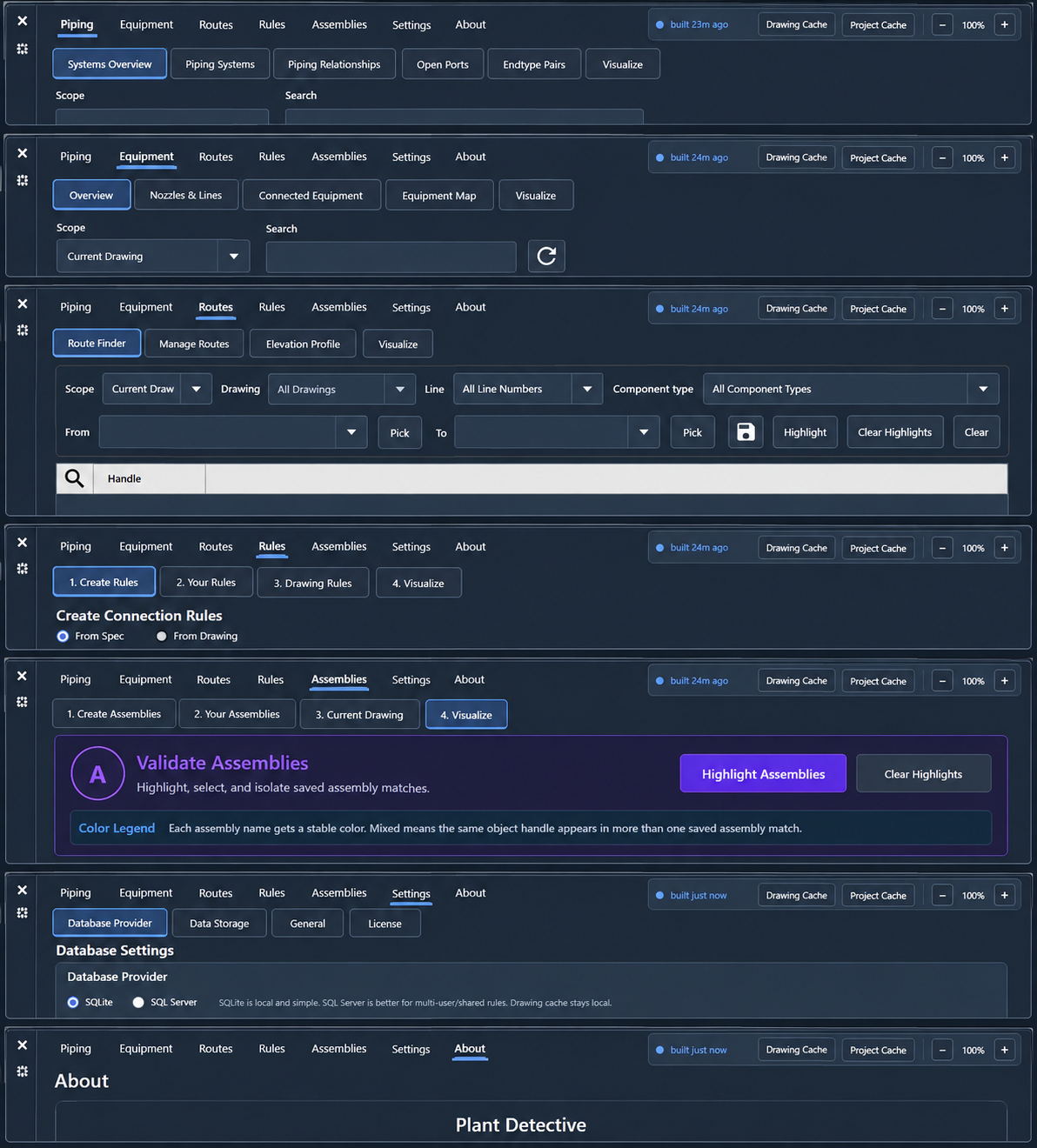
- Choose Piping, Equipment, Routes, Rules, Assemblies, Settings, or About.
- Use the palette's + and − controls if you need to change its interface scale. The percentage describes palette scale, not model zoom.
Expected result: The workspace opens. Some views automatically load saved data when opened. Loading saved results does not mean the model has just been rebuilt.
Find the nested task
| Workspace | Nested views |
|---|---|
| Rules | 1. Create Rules, 2. Your Rules, 3. Drawing Rules, 4. Visualize |
| Piping | Systems Overview, Piping Systems, Piping Relationships, Open Ports, Endtype Pairs, Visualize |
| Equipment | Overview, Nozzles & Lines, Connected Equipment, Equipment Map, Visualize |
| Routes | Route Finder, Manage Routes, Elevation Profile, Visualize |
| Assemblies | 1. Create Assemblies, 2. Your Assemblies, 3. Current Drawing, 4. Visualize |
| Settings | Database Provider, Data Storage, General, License |
| About | Product identity/displayed version, documentation/support and license-agreement controls |
Click a tab name to switch views. Check retained search, scope and tree selections before acting. Palette +/− changes interface scale; a row Zoom action changes the model view.
For support, open About to read product/version details and also record the installed package version. The displayed version text may not identify the exact binary build. Use the contact supplied with your release or purchase if an About link is unavailable.
What to expect
The selected workspace appears in the palette. Some views are created when first opened, so an initial load can take longer than switching between already-open views.
Important notes
- Palette scale changes the interface size, not model geometry or drawing zoom.
- Top-level tabs may retain their previous filters, selections, and data. Check them when returning to a task.
- Drawing and Project are analysis scopes; they do not select a different persistent database provider.
- A refresh reloads available results. It does not necessarily rebuild the drawing cache.
Screenshots