CADPEAK
Select, zoom, highlight, and isolate components
Navigate from an analysis row to the model without confusing temporary graphics with model edits.
Before you start
- The intended drawing/source is available.
- The row has a resolvable physical component.
Steps
- Confirm the result's drawing and scope.
- Select the intended grid rows and use the row Zoom action or Navigate → Zoom to Selected Rows (…).
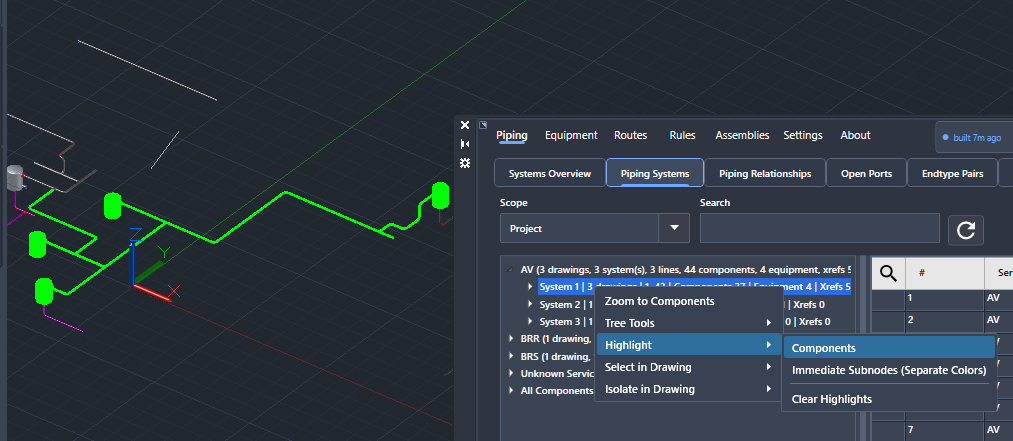
- Open Select in Drawing and choose selected/displayed Components or Components and Connectors, when offered.
- Use Highlight for selected/displayed rows and read the relevant legend.
- Use Isolate in Drawing for the intended subset to hide other objects temporarily.
- Use Clear Highlights to remove review graphics.
- Use End Isolation or the host's end-isolation action to restore visibility.
- If the wrong object appears, stop, check the source drawing, and refresh the view.
For copying, CSV export and column management, see Filter, copy, and export result tables.
A row selection is not a model highlight. Highlighting adds an overlay; isolation temporarily changes visibility. Clear highlights and end isolation independently.

What to expect
Selection, camera zoom, temporary highlighting, and isolation are separate actions. Clearing one does not necessarily undo another.
Important notes
- A schematic graph node is not always a separate physical entity; several equipment interfaces can resolve to one equipment object.
- Some project navigation opens or activates a source drawing. Check the active drawing afterward.
- A missing object may have been edited, deleted, unloaded, or drawn from stale cache data.
- Temporary colors do not assign line numbers, reconnect parts, or change rule classifications.
Screenshots