CADPEAK
Save, organize, and reopen routes
Keep reviewed routes in the project route library and organize them into folders.
Before you start
- A reviewed route and an accessible saved-routes folder.
Steps
Load and manage saved routes
- Open Manage Routes.
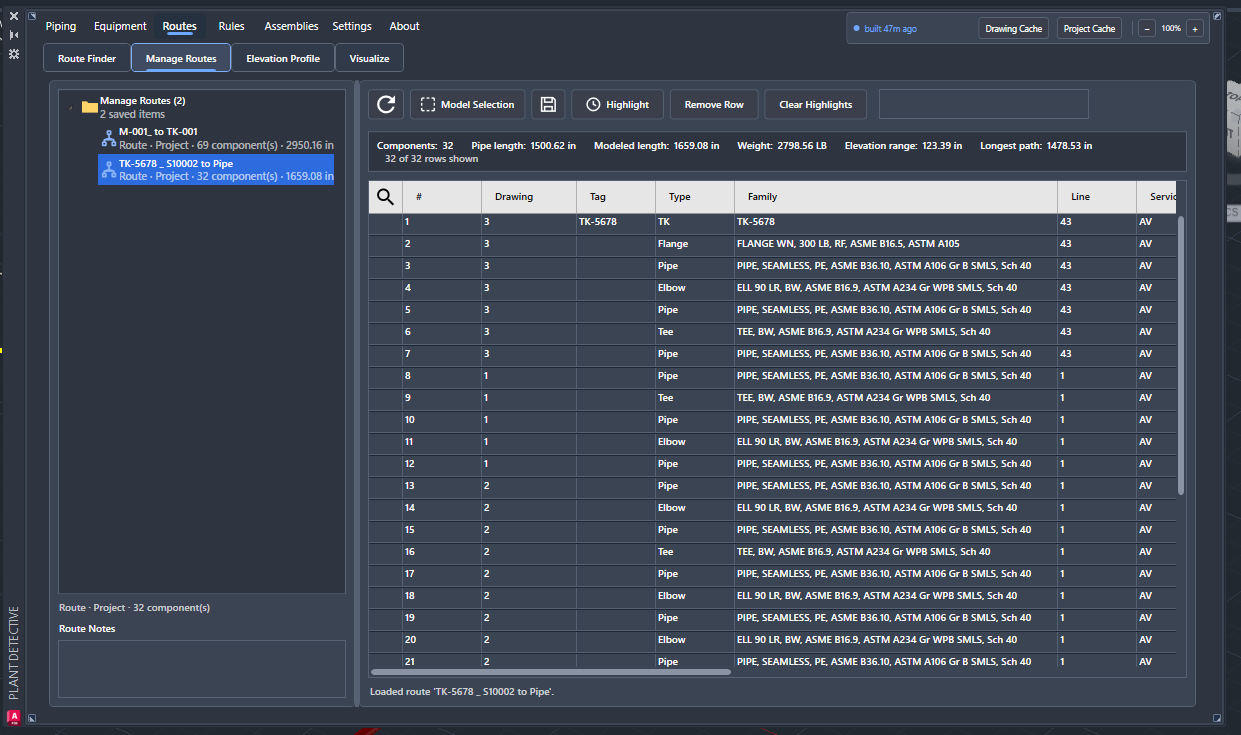
- Expand the saved-item tree and select an item.
- Read the item's kind/scope/component summary. A saved ordered route and a saved selection set are different kinds of item.
- Double-click it, or right-click and choose Load Route. For a selection set, the menu becomes Load Selection Set.
- Read the analysis grid and Components, Pipe length, Modeled length, Weight, Elevation range, and Longest path summary values.
- Use the grid search field to narrow displayed rows.
- Use Highlight for selected rows, or the visible analysis set when no rows are selected.
- Use row zoom/double-click and shared grid actions for local review.
- On the saved item, use Highlight, Select Route Components, or Select Route Components and Connectors for the corresponding model action. This saved-item Highlight menu differs from the analysis toolbar Highlight, which acts on selected rows or the visible analysis set.
- Use Clear Route when the loaded item should no longer drive the review.
Organize and annotate
- Right-click the root and choose New Folder; within a folder the label becomes New Folder in ….
- Drag saved items into folders to organize them.
- Use Rename, Duplicate, and Move to Root on saved items.
- Use Rename Folder on an organizational folder.
- Select a saved item and enter Route Notes. Notes are stored with that item; changing tree selection saves the previous item's notes.
- Use the save icon with tooltip Save the current route or model selection to save the current analysis. The dialog distinguishes Save Route from Save Selection Set.
Use Delete for an item. Delete Folder; Keep Items preserves its items; Delete Folder and Items removes them. Read the confirmation before either deletion.
Analyze a model selection instead
- Click Model Selection.
- Follow the AutoCAD selection prompt.
- If an existing analysis prompts for how to proceed, choose Add to Current Route, Start New Route, or Cancel.
- Review the resulting component set and save it as appropriate.
- To omit analysis components, select rows and click Remove Row, then confirm.
- Read the status: removing rows from an ordered route turns the remaining analysis into a selection set. It does not delete objects from the drawing or preserve the original ordered route automatically.
What to expect
Saved routes retain ordered route information and are associated with project identity.
Important notes
- Loading checks available components and reconstructs review information; it is not a fresh shortest-path search.
- Model changes can make a saved path unavailable or alter its calculated metrics.
- Changing the saved-routes base folder does not move existing files.
- Coordinate edits when several users share a route folder; avoid simultaneous writes to the same saved route.
Screenshots