CADPEAK
Choose SQLite or SQL Server for application data
Choose where Plant Detective stores reusable rules, assemblies, and related persistent records.
Before you start
- Back up existing application data and obtain any required SQL Server access.
Steps
Choose the rule provider
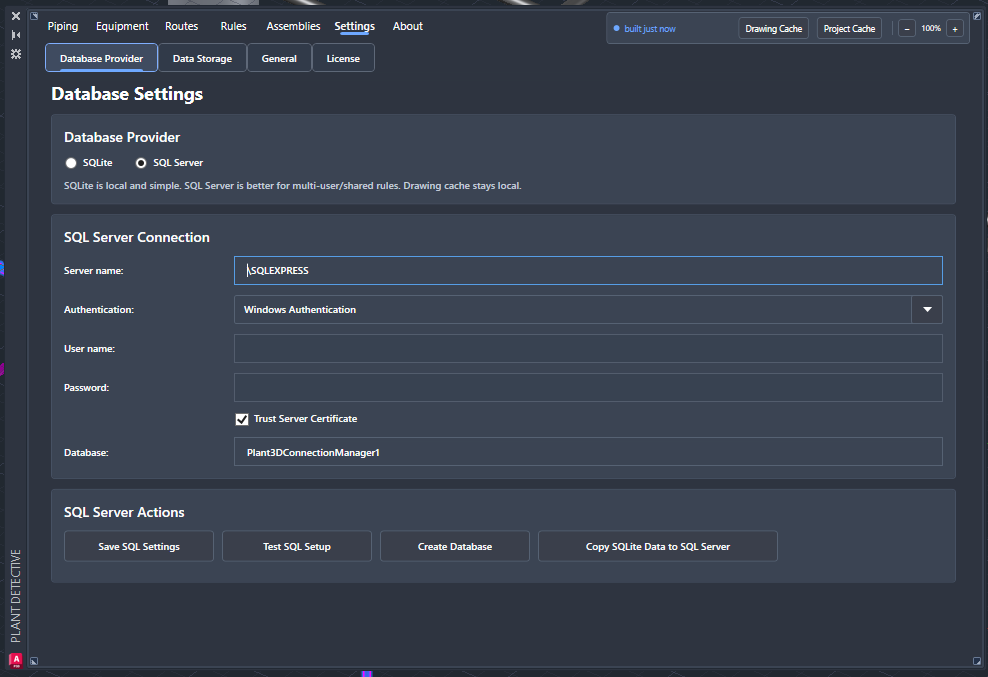
- Open Database Provider.
- Choose SQLite for a local rule store, or SQL Server for the shared provider.
- Read Confirm Database Provider Switch.
- Choose Yes to change where rules are read/saved, or No to retain the existing provider.
- Read the result message.
- Restart AutoCAD if rule views/repositories were already open so all loaded views use the selected provider consistently.
Expected result: Provider selection is saved immediately after confirmation. Existing data is not moved automatically. Drawing/project caches remain SQLite files separate from the SQL Server persistent application database.
What to expect
The provider controls persistent application repositories. Drawing and project analysis caches remain SQLite files. Physical storage location is configured separately.
Important notes
- Switching provider is not itself a data migration.
- Connections.sqlite is the persistent application database, not the drawing cache.
- Images and saved route files have their own folders and are not included in the database copy.
- Provider changes and existing open views should be verified in the supplied release; this guide does not promise immediate rebuilding of every cached view.
Screenshots