CADPEAK
Create connection rules from a specification
Build reusable classifications from specification parts using Side A and Side B.
Before you start
- A project with accessible specifications.
- A deliberate classification and choice of Family Match or Size Match.
Steps
Open spec-based creation
- Click Rules → 1. Create Rules.
- Choose From Spec.
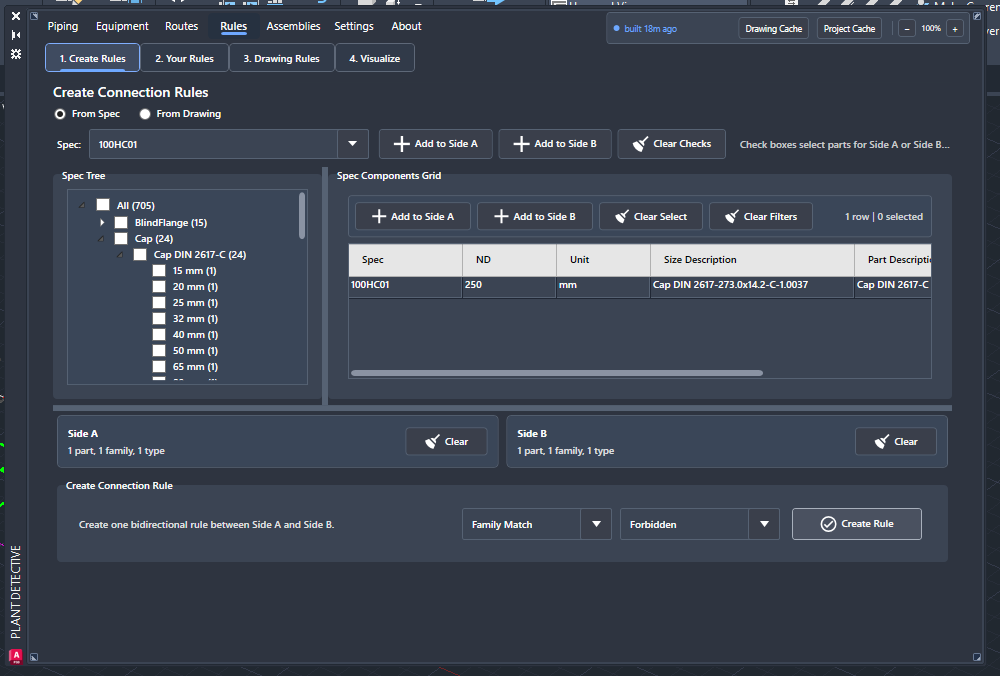
- Select the specification in Spec:.
- Wait for the tree and grid to populate. Loading happens automatically after selecting the specification; there is no separate loading button.
- Expand tree branches to browse component families and sizes.
- Click a tree name to filter the grid.
- Compare Spec, ND, Unit, Size Description, Part Description, and Type before choosing parts.
Add parts to Side A
- Check the boxes beside the intended parts or branches. Checking a branch can collect its descendants.
- Make sure no unintended grid rows remain selected. Add to Side A uses selected grid rows if any exist; otherwise it uses checked tree parts.
- Click Add to Side A.
- Expand Side A and review its part list and summary.
- If the set is wrong, click the Clear button inside Side A and rebuild that side.
Alternatively, select specific grid rows and click Add to Side A, or use Add Selected to Side A from the grid context menu. This is useful for selecting only particular sizes.
Expected result: Side A contains the accumulated parts. Adding parts does not yet save a rule.
Add parts to Side B
- Click Clear Checks before choosing the second set. It clears spec-tree checks and grid selections and reloads the current specification's full grid.
- Browse to the second family.
- Check the desired boxes, or deliberately select the desired grid rows.
- Click Add to Side B.
- Review Side B's tree and summary.
- Use Side B's Clear to replace that side if necessary.
Clear Checks clears the browser selection. Use the side-specific Clear buttons to empty Side A or Side B.
Expected result: Both sides contain the intended components. Rules are bidirectional; reversing the sides does not establish a different permitted direction.
Choose matching scope and status
- Choose Family Match for family identities that should apply across equivalent sizes.
- Choose Size Match when selected size identities must be distinguished.
- Choose Required, Allowed, or Forbidden.
- Recheck both sides. Every unique identity on Side A is combined with every unique identity on Side B at that scope. Several selections can produce many pairs, not just one first-row-to-first-row rule.
Allowed records an accepted pair; Forbidden records a disallowed pair; Required records the required status for the pair. The drawing results classify modeled connections. A required-status count alone does not establish that every intended connection exists.
Preview and save
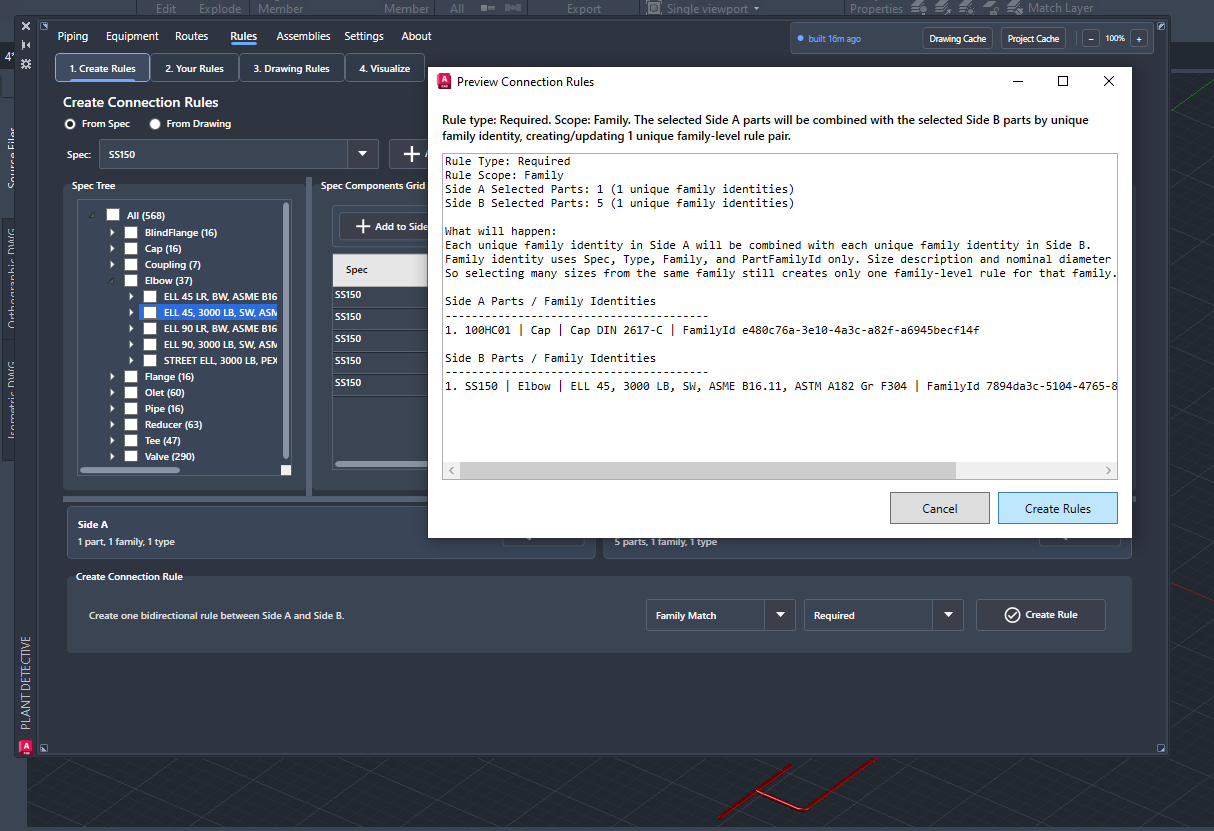
- Click Create Rule.
- In Preview Connection Rules, verify status, scope, side counts, and the number of unique pairs to create or update.
- For a family rule, review the listed pairs.
- For a size rule, review selected parts and pair counts. The size preview deliberately does not enumerate every possible pair.
- Click Cancel if the set is too broad, adjust the sides, and try again.
- Click Create Rules in the preview to commit.
- Read the save summary. If nothing would change, the application reports that instead of saving redundant rules.
Expected result: New/updated definitions are saved to the configured rule store. There is no separate Save step after Create Rules.
What to expect
The saved rules classify matching bidirectional pairs. Multiple selections can produce several pair rules; the displayed preview/counts should match your intent.
Important notes
- Family matching broadens size applicability within compatible identities; it is not a wildcard across every specification.
- The specification browser's display order does not determine physical flow direction.
- Creating a rule does not place parts in a drawing or reconnect existing parts.
- Rebuild the relevant analysis after rule changes, then refresh the view; previously displayed classifications can remain cached.
Screenshots