 CADPEAK
Getting Started and Working with Results
Purpose
Prepare drawing or project data and use the result controls shared by the workspaces.
Example
Review a pump discharge line, locate suspect connections, and export an exception list for a colleague.
Prerequisites
Plant Detective must be installed and loaded in Plant 3D. Open the intended project and piping drawing, with a valid license. Save model edits before a lengthy build. Project reviews require access to project piping drawings. See Settings and licensing for activation and configuration.
Open the palette
- Enter
PDTat the AutoCAD command line and press Enter. - If activation is requested, enter the organization's license key and click Activate License.
- Choose Piping, Equipment, Routes, Rules, Assemblies, or Settings.
- Use the palette's + and − controls if you need to change its interface scale. The percentage describes palette scale, not model zoom.
Expected result: The workspace opens. Some views automatically load saved data when opened. Loading saved results does not mean the model has just been rebuilt.
Build current drawing data
- Make the intended drawing active.
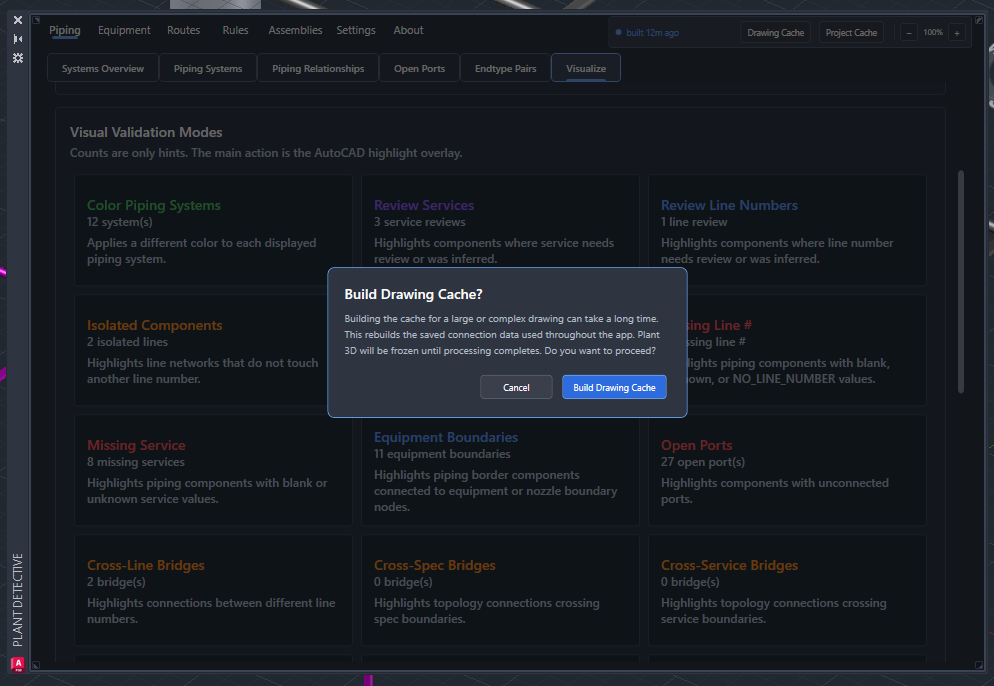
- Click Drawing Cache in the palette header.
- Read Build Drawing Cache?. It warns that Plant 3D can be frozen during processing.
- Click Build Drawing Cache, or Cancel to return without starting.
- Wait for command completion and for Plant 3D to respond. Closing the confirmation is not completion.
- Open the needed workspace. If results still look old, use its refresh control. Rules visualization calls this Refresh Tab.
Expected result: The saved drawing data used by the workspaces has been rebuilt. Refreshing a tab reloads saved information; after geometry, connectivity, or rule changes, rebuild before relying on the results.
Build project data
- Open the intended Plant 3D project.
- Click Project Cache.
- Read Build Project Cache?. Each piping drawing must be processed; large projects can take considerable time.
- Click Build Project Cache, or Cancel.
- Wait for completion.
- Choose Project in the result view's scope selector and refresh its display if needed.
A short delay in a view does not guarantee a queued build has finished. Wait for the AutoCAD completion result before refreshing or relying on saved data.
Choose scope deliberately
Current Drawing or Drawing refers to the active drawing. Project uses saved results from project drawings. Read the Drawing column before acting on a project row.
Project results can include objects in drawings that are closed or not loaded as Xrefs. Selection/isolation generally apply to selectable objects in the active drawing. Some zoom and highlight actions also support loaded Xrefs. Use component-opening controls where provided and read status messages for unavailable targets. Project scope does not make every project object selectable in the host drawing.
Narrow a result grid
- Use the view's search field, scope selector, and status filter where present.
- Expand the result tree and click a label to show its associated rows.
- Right-click a cell containing a value to keep, such as Status or Spec.
- Open Filter and choose Include Status: … or Include Spec: …. The menu uses the actual column name and clicked value.
- Use Exclude … to omit a value.
- Select a subset of rows and choose Filter → Show Only Selected Rows (…) when you want a hand-picked review set.
- Use Undo Last Filter to reverse the latest grid filter, or Clear All Filters to clear grid filters.
- Also clear search, restore dropdowns to All, and return to the tree's all-results node when you want the full source set. Grid-filter clearing does not clear these other restrictions.
Expected result: Rows reflect the combined view restrictions. An empty filtered grid is not necessarily an empty model.
Clicking a tree label, checking a box, and selecting grid rows are different operations. In rule creation, tree checkboxes collect parts for a side; clicking the label filters the grid. In result views, row selection prepares a subset for menu actions.
Work with results
Shared grids offer actions according to the view's capabilities. A saved definition may have no drawable model target. Use the actions present and enabled in the current menu.
| Menu action | Use |
|---|---|
| Data → Copy Cell Value | Copy the clicked value. |
| Data → Copy Selected Rows | Copy the selected review subset. |
| Data → Export Selected Rows to CSV | Save selected rows using the destination dialog. |
| Data → Export Displayed Rows to CSV | Save the current filtered result set. |
| Columns → Auto Hide Empty Columns | Reduce width where fields are empty. |
| Columns → Show All Columns | Restore columns before investigating missing detail. |
| Columns → Auto Size Columns / Reset Column Sizes | Fit widths or restore defaults. |
| Columns → Reset Entire Grid View | Reset grid presentation; recheck surrounding search/tree restrictions. |
| Navigate → Zoom to Selected Rows (…) / Zoom to Displayed Rows (…) | Frame drawable results. |
| Highlight | Overlay selected/displayed targets, then use Clear Highlights. |
| Select in Drawing | Select selected/displayed rows' Components or Components and Connectors, when offered. |
| Isolate in Drawing | Temporarily isolate selected/displayed targets, then use End Isolation. |
A row selection is not a model highlight. Highlighting adds an overlay; isolation temporarily changes visibility. Clear highlights and end isolation independently.
Set length display format
On eligible grids, right-click and open Length Display Format. Choose Decimal for decimal values or Architectural (Feet and Inches) for feet-and-inches presentation. The menu appears for supported length columns. Formatting changes displayed text, not model geometry or underlying engineering units. Check model/result units before interpretation. Verify CSV/clipboard values and units rather than assuming they match screen formatting.

Next steps
Continue with Connection Rules or Piping Networks. After correcting the model, rebuild and repeat the same filters to produce an updated review list.
Related individual help
- What Plant Detective helps you review
- Install or update Plant Detective
- Open Plant Detective in a project drawing
- Activate and manage your Plant Detective license
- Navigate the Plant Detective palette
- Build and refresh the current drawing cache
- Build project-wide analysis data
- Choose Drawing or Project scope
- Filter, copy, and export result tables
- Select, zoom, highlight, and isolate components
- Troubleshoot Plant Detective and prepare a support request