CADPEAK
Review drawing and project connection results
Compare detected connections with saved classifications and investigate specific rows.
Before you start
- Drawing/project extraction completed for the required scope.
Steps
Build data and open Drawing Rules
- Click Drawing Cache, confirm Build Drawing Cache, and wait for completion.
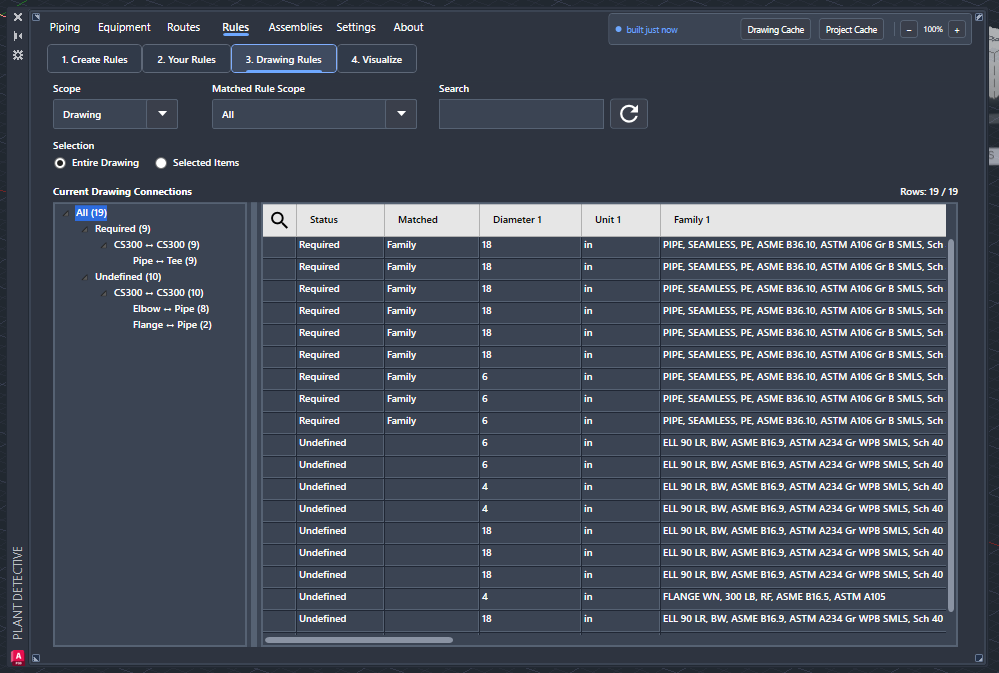
- Open 3. Drawing Rules.
- Choose Drawing and All, Part Family, or Part Size in the rule-scope filter.
- Choose Entire Drawing for all results. To restrict results, select objects in AutoCAD first, then click Selected Items. With no model selection, the application asks for one.
- Expand the tree and click a pair/status group.
- Read Status and Matched, then compare both sides' Spec, Type, Family, Size, Diameter, Unit, and Port.
- To focus on a status, right-click its Status cell and use Filter → Include Status: ….
- Select suspect rows and use the row zoom action or Navigate → Zoom to Selected Rows (…).
- Use Select in Drawing for components, optionally with connectors.
- Use Highlight for a visual overlay, or Isolate in Drawing for a focused view.
- Restore visibility with End Isolation and remove overlays with Clear Highlights.
- Export the review set through Data → Export Displayed Rows to CSV, or export only the selected exceptions.
For project results, build Project Cache and choose Project. Read Drawing and apply the project/Xref limits before acting on rows.
Visualize validation
- Open 4. Visualize and choose Drawing.
- Click Refresh Tab to reload saved counts.
- Compare Forbidden connections, Undefined connections, Required connections, Allowed connections, and Mixed-status objects. Mixed is an object rollup: one object can participate in different-status connections.
- Click a result card to select its objects.
- Click Highlight Issues and compare the model overlay with Highlight Color Legend.
- Under Isolate in Drawing, choose Forbidden Conn., Undefined Conn., Required Conn., Allowed Conn., or Mixed Objects.
- Use End Isolation and Clear Highlights when finished.
- Click Validate Selected for a direct check, follow the model-selection prompt, and read the command-line result.
- Choose Project for project visualization. Use the provided loaded-Xref colors, visibility, isolation, and component-opening controls when targets are available.
What to expect
The table shows cached detected relationships and their classification. It differs from Your Rules, which shows the reusable rule library.
Important notes
- No row is not proof that no connection exists: an unreadable or unavailable object can be absent from extraction.
- Undefined can reflect missing rules or database access, not just incomplete engineering configuration.
- Check the active drawing before a raw-handle navigation action.
- Do not interpret cached results as live monitoring of unsaved edits.
Screenshots