CADPEAK
Find and review open ports
Locate scanned ports without a detected connection and decide whether they need attention.
Before you start
- A recent drawing or project build.
- Access to the actual model for confirming endpoint conditions.
Steps
Check Open Ports
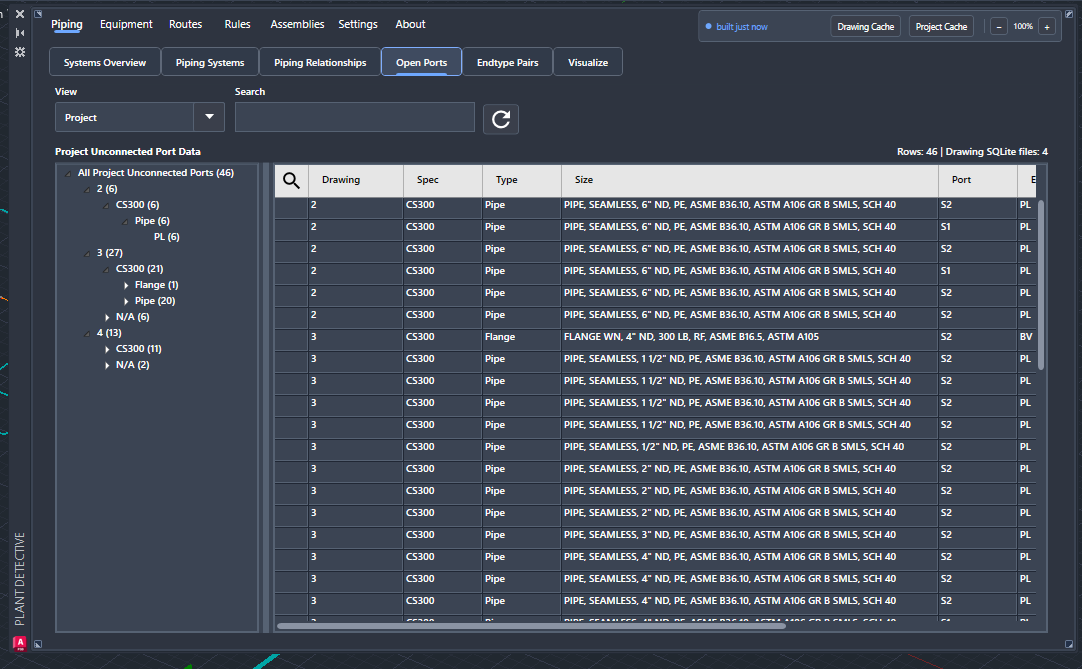
- Open Open Ports.
- Choose Current Drawing or Project and refresh.
- Expand the unconnected-port tree and click a group.
- Compare Spec, Type, Size, Port, End Condition, Diameter, and Unit. Current drawing also shows Display Size.
- In Project, check Drawing before selecting a result.
- Right-click a tree group and use Select Matching Parts or Isolate Matching Parts where offered.
- Use grid filters to isolate a particular port/end-condition value, then zoom to selected rows.
- Use End Isolation when finished.
Expected result: Rows describe unconnected ports. Several ports can belong to one component; do not read the row count as a unique-component count. A modeled open end can be intentional, so review it in context.
What to expect
The result identifies ports for review. One component can have connected and unconnected interfaces at the same time.
Important notes
- An open port is not automatically a design error; terminal or intentionally unused ports may be valid.
- A missing external connection or unreadable object can affect the result.
- Equipment counts may aggregate interfaces differently from a raw open-port table.
- Changing a rule status does not physically close or connect a port.
Screenshots