CADPEAK
Review assembly matches and missing patterns
Compare saved assembly definitions with cached drawing or project connectivity.
Before you start
- Saved definitions and analysis data for the chosen scope.
Steps
Build and review drawing matches
- Open 3. Current Drawing.
- Choose Drawing.
- Click Build Current Drawing Assemblies.
- Wait for the AutoCAD command to finish. The build is queued; the initial “building” text is not a completion result.
- Click the Refresh icon to reload saved detection rows.
- Choose Matches to inspect detected occurrences.
- Expand the assembly tree and click the desired group.
- Read Assembly, Type, Status, Confidence, Nodes, Edges, and Branches.
- Use the row zoom action or the shared Navigate, Highlight, Select in Drawing, and Isolate in Drawing menus where enabled.
- Choose Not Found to review saved absence/incomplete-match results. Read Missing with the status rather than treating a missing result as a selectable full occurrence.
- Use search and grid filters to narrow a definition/status; export the displayed rows to CSV if needed.
Expected result: Found and Not Found summaries describe saved detection results. Confidence and topology counts help compare matches but should be checked visually against the intended arrangement.
Review project matches
- Build Project Cache for current project topology.
- In 3. Current Drawing, choose Project. The displayed content switches to project assembly results.
- Click Build Project Assemblies and wait for completion.
- Use Refresh Project Assemblies.
- Choose Matches or Not Found, then inspect Drawing, Assembly, Instance, Status, and Confidence.
- Use drawing-aware navigation where available. Selection/isolation of project rows remains limited by active-drawing and loaded-Xref availability.
Visualize occurrences
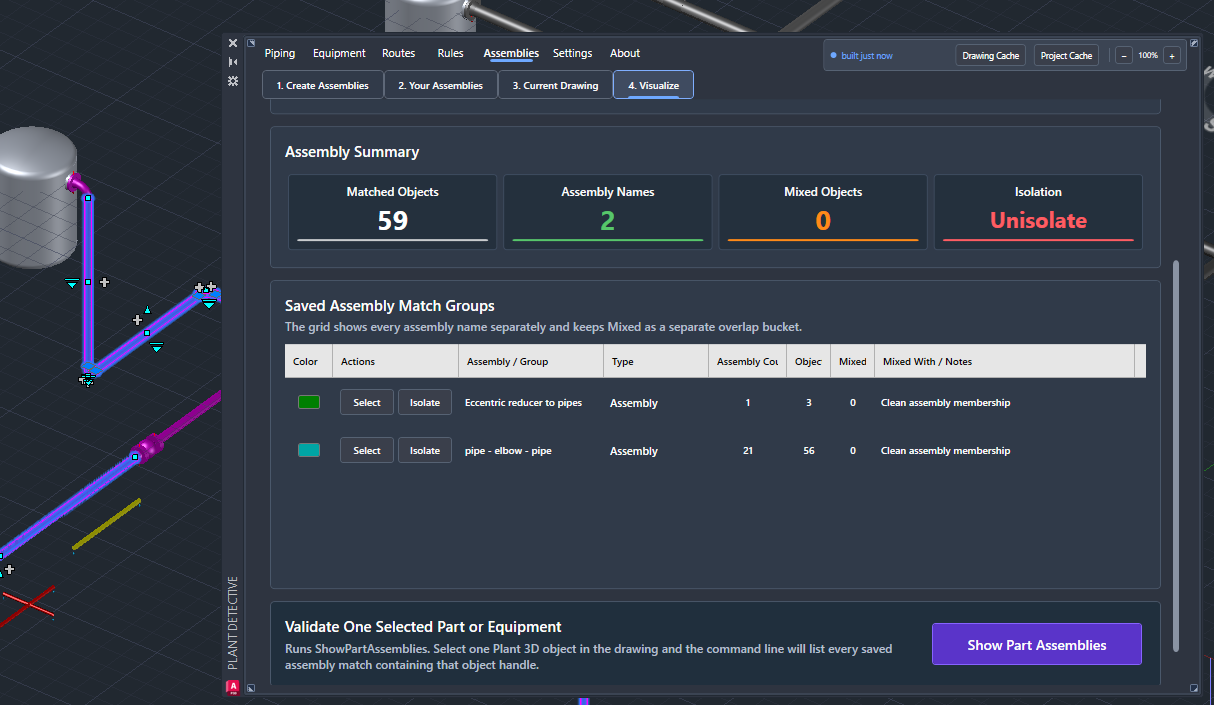
- Open 4. Visualize and choose Drawing.
- Use Build Assembly Data if saved detection data needs rebuilding, wait, then refresh.
- Click Highlight Assemblies.
- Read the colored rows' Assembly / Group, Type, Assembly Count, Objects, Mixed, and Mixed With / Notes.
- Use Select or Isolate on a group for focused review.
- Use Show Part Assemblies when reviewing part-assembly groupings.
- Click Clear Highlights when finished and use Unisolate to restore drawing visibility separately if used.
In Project, use the project group/occurrence controls, ◀ and ▶ navigation, and Zoom. Xref controls include Toggle Xref Colors, Clear Xref Colors, Hide Xrefs, Show Xrefs, Isolate Xrefs, Open Component, and Open Read Only.
What to expect
Matching reports patterns found in the analytical graph and records validation information.
Important notes
- Not Found is an analysis outcome; incomplete or stale data can cause a false absence.
- The available matching behavior caps matches at 25 per definition. Do not use the displayed list as an exhaustive occurrence count.
- Displayed confidence is not a statistically calibrated probability.
- A graph match does not validate orientation, process intent, fabrication suitability, or every physical property.
Screenshots